How To Set Cell Styles Using OpenPyX – Color

Method

  • RGB Coloring

>>> font = Font(color=’00FF0000′)

>> font = Font(color=’FF0000′)

>>> from openpyxl.styles.colors import Color

>>> c = Color(rgb=’00FF00′)     #RGB Color

>>> font = Font(color=c)

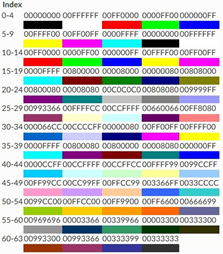
  • Indexed Coloring

>>> c = Color(indexed=32)     #Indexed Color

>>> font = Font(color=c)

  • Theme Color

Set theme color using the `theme` parameter.

>>> c = Color(theme=6, tint=0.5)     #Theme color

>>> font = Font(color=c)

Sample Code

#Cell Style: Setting Colors

#Import load_workbook function
from openpyxl import Workbook

#Create a new workbook
wb=Workbook()
#Get the active worksheet
ws=wb.active

#Import the Font class
from openpyxl.styles import Font
font=Font(color="00FF0000")
#font=Font(color="FF0000")

#Set font for a cell
ws.cell(row=2,column=2).font=font
ws['B2']='Test123'

from openpyxl.styles.colors import Color
#RGB color
c=Color(rgb="00FF00")
font=Font(color=c)

#Set font for a cell
ws.cell(row=3,column=3).font=font
ws['C3']='Test123'

#Indexed coloring
c=Color(indexed=32)
font=Font(color=c)

#Set font for a cell
ws.cell(row=4,column=4).font=font
ws['D4']='Test123'

#Theme colors
c=Color(theme=6,tint=0.8)
font=Font(color=c)

#Set font for a cell
ws.cell(row=5,column=5).font=font
ws['E5']='Test123'

wb.save('test.xlsx')
wb.close()
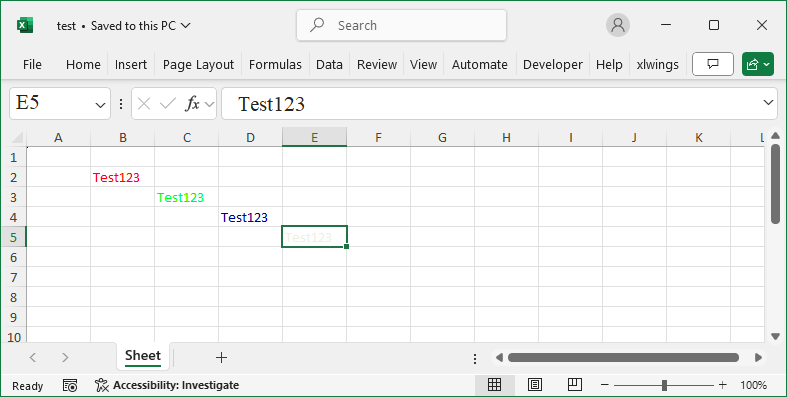
Set Cell Styles Using OpenPyX - Color

Indexed Color Table

How To Set Cell Styles Using OpenPyX – Font

Method

Create a `Font` object to define the font’s name, size, boldness, italics, etc. The main parameters and their descriptions are as follows:

  • nameFont name.
  • sizeFont size.
  • colorFont color.
  • boldWhether the font is bold.
  • italicWhether the font is italic.
  • underlineUnderline setting, can be “none”, “single”, or “double”.
  • strikeWhether the font has a strike-through.
  • strikethroughAlternate for strike-through.
  • vertalignSuperscript, subscript setting, can be “superscript”, “subscript”, or “baseline”.

Sample Code

#Cell Style: Setting Fonts

#Import load_workbook function
from openpyxl import Workbook

#Create a new workbook
wb=Workbook()
#Get the active worksheet
ws=wb.active

#Import the Font class
from openpyxl.styles import Font

#Create a font
font=Font(name='Arial', size=12, bold=True, italic=True, \
          underline='single', strike=False, color='FF0000')

#Set the font of a cell
ws.cell(row=3, column=3).font=font
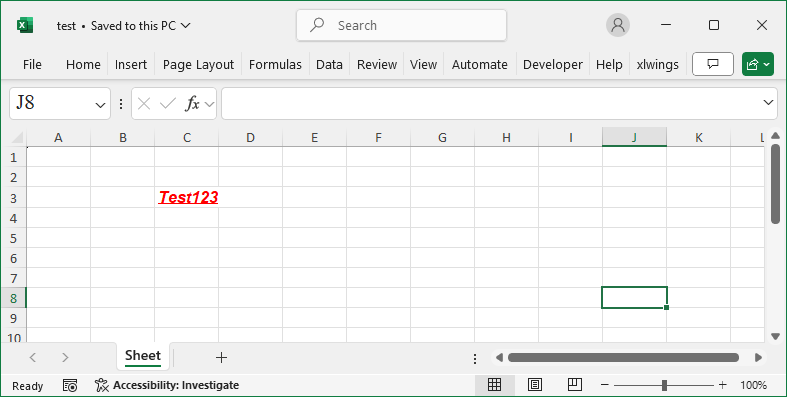
ws['C3']='Test123'

wb.save('test.xlsx')
wb.close()
Set Cell Styles Using OpenPyX - Font

How To Set Cell Styles Using OpenPyX – Overview

Method

Import related classes to set the cell style. OpenPyXl  has six related classes:

  • NumberFormat
  • Font
  • Alignment
  • PatternFill
  • Border
  • Protection

Import them before using them:

from openpyxl.styles import numbers,Font, Alignment

from openpyxl.styles import PatternFill, Border, Side, Protection

Sample Code

#Working with Cell Styles

#Import load_workbook function
from openpyxl import Workbook

#Create a new workbook
wb=Workbook()
#Get the active worksheet
ws=wb.active

#Import cell style-related classes
from openpyxl.styles import numbers,Font,Alignment
from openpyxl.styles import PatternFill,Border,Side,Protection
from openpyxl.styles import Font

#Create fonts
font=Font(bold=True)

#Get a cell
cl=ws['C3']

#Set the font of a cell
cl.font=font

#Set the font of a cell range
for row in ws['A1:C3']:
    for cell in row:
        cell.font = font

#Set the font of a row
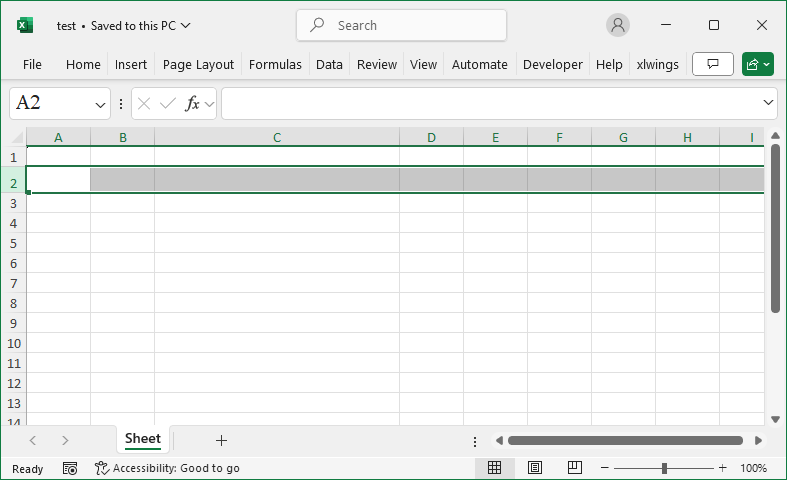
row=ws.row_dimensions[1]
row.font=font

#Set the font of a column
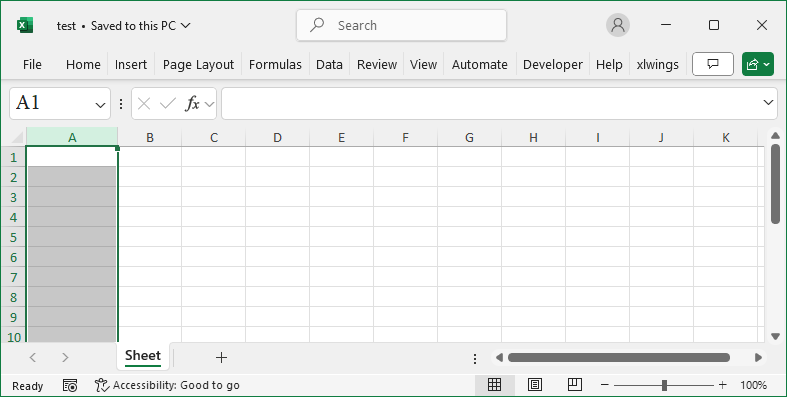
column=ws.column_dimensions['A']
column.font=font

wb.save('test.xlsx')
wb.close()
Set Cell Styles Using OpenPyX

How To Used Cell Range of a Worksheet Using OpenPyXL?

Method

When the first N rows or columns of data are empty, there may be issues when iterating over all rows using the `rows` property of the worksheet object or over all columns using the `columns` property.

Use the following properties of the worksheet object to construct a `CellRange` object:

>>> from openpyxl.worksheet.cell_range import CellRange

>>> cr=CellRange(min_col=ws.min_column,max_col=ws.max_column,   min_row=ws.min_row,max_row=ws.max_row)

>>> cr.coord

Sample Code

#Used Range of Cells in a Worksheet

#Import load_workbook function
from openpyxl import Workbook

#Create a new workbook
wb=Workbook()
#Get the active worksheet
ws=wb.active

#Import the CellRange function
from openpyxl.worksheet.cell_range import CellRange

#Use the CellRange function to create a cell range object
cr=CellRange(min_col=ws.min_column,max_col=ws.max_column, \
             min_row=ws.min_row,max_row=ws.max_row)

#Output the coordinates of the cell range
print(cr.coord)

wb.save('test.xlsx')
wb.close()

How To Reference a Cell Range Using OpenPyXL? (2)

Method

Using the `CellRange` class.

from openpyxl.worksheet.cell_range import CellRange

Attributes of CellRange Object

  • bottom,top,left,right  – Coordinates of the four sides of the range.
  • cells, cols, rows – Cell coordinates.
  • bounds – Vertices, similar to `(8, 3, 10, 5)`.
  • min_row, min_col, max_row, max_col – Row or column numbers around the range.
  • size – Size

Sample Code

#Referencing Cell Ranges

#Import load_workbook function
from openpyxl import Workbook

#Create a new workbook
wb=Workbook()
#Get the active worksheet
ws=wb.active

#Use the `CellRange` method to create a cell range object
from openpyxl.worksheet import cell_range as cr
cr0=cr.CellRange(min_row=2,max_row=5,min_col=3,max_col=6)

#Coordinates of cells in the bottom row of the range
print(cr0.bottom)

#Coordinates of cells in the top row of the range
print(cr0.top)

#Coordinates of cells in the leftmost column of the range
print(cr0.left)

#Coordinates of cells in the rightmost column of the range
print(cr0.right)

#Minimum row number in the range
print(cr0.min_row)

#Minimum column number in the range
print(cr0.min_col)

#Maximum row number in the range
print(cr0.max_row)

#Maximum column number in the range
print(cr0.max_col)

#Size of the range
print(cr0.size)

#Coordinates of the top-left and
#bottom-right cells of the range
print(cr0.bounds)

#Coordinates of the top-left and
#bottom-right cells of the range
print(cr0.coord)

#Coordinates of each row's cells in the range
for cell in cr0.rows:
    print(cell)

#Coordinates of each column's cells in the range
for cell in cr0.cols:
    print(cell)

#Coordinates of each individual cell in the range
for cell in cr0.cells:
    print(cell)

wb.save('test.xlsx')
wb.close()

How To Reference a Cell Range Using OpenPyXL?

Method

  • Given the coordinates of the top-left and bottom-right corners of a range, use these coordinates to reference the cell range. – A tuple of cell objects.
  • Reference rows and columns – A tuple of cell objects.
  • Use the `CellRange` class.

Sample Code

#Referencing Cell Ranges

#Import load_workbook function
from openpyxl import Workbook

#Create a new workbook
wb=Workbook()
#Get the active worksheet
ws=wb.active

#Get a range of cells
cr=ws['A1:C4']
#Or
#cr=ws['A1':'C4']
print(cr)
print(cr[2][2].value)

wb.save('test.xlsx')
wb.close()

How To Reference a Cell Using OpenPyXL?

Method

A cell reference refers to finding the cell you want to operate on in a worksheet.

  • Use square brackets

ws[‘A1’]=0

  • Use the `cell` method of the worksheet object to reference and assign values
  • Use the `Cell` class

from openpyxl.cell.cell import Cell, MergedCell, WriteOnlyCell

from openpyxl.cell.read_only import ReadOnlyCell


Common Attributes

  • alignment
  • Border
  • col_idx
  • column
  • column_letter
  • comment
  • coordinate
  • data_type
  • encoding
  • fill
  • font
  • has_style
  • hyperlink
  • is_date
  • number_format
  • parent
  • row
  • value

Sample Code

#Referencing Cells

#Import load_workbook function
from openpyxl import Workbook

#Create a new workbook
wb=Workbook()
#Get the active worksheet
ws=wb.active

#Assign a value to cell A1
ws['A1']=123
#Assign a value to cell B2
ws['B2']='你好'
#Get the value from cell A1
cl=ws['A1']

#Return the Cell object
cl=ws.cell(row=4, column=2, value=10)

#Import the cell class
from openpyxl.cell import cell
#Use the Cell method to create a cell
cl=cell.Cell(worksheet=ws, row=4, column=2, value=10)

cl=ws['C3']    #Referencing a cell
print(cl.row)    #Row number of the cell
print(cl.column)    #Column number of the cell
print(cl.value)    #Value of the cell
print(cl.coordinate)    #Coordinates of the cell
print(cl.data_type)    #Data type of the cell value
cl.hyperlink='https:\\www.baidu.com'    #Link in the cell
print(cl.hyperlink)
#Offset to a cell at a specified position
#(e.g., 1 row down, 2 columns right)
h=cl.offset(row=1, column=2)
print(h.value)

wb.save('test.xlsx')
wb.close()

Other Properties and Methods Using OpenPyXL

Method

>>> ws.title   # The name of the worksheet

‘Sheet’

>>> ws.sheet_state   # The visibility state

‘visible’

>>> ws.dimensions  # The size of the area containing data in the table

‘A2:G10’

>>> ws.sheet_properties  # Properties related to the worksheet, including tabColor, tagname, etc.

>>> ws.sheet_properties.tabColor=’FF0000′   # Set the background color of the tab label

>>> ws.active_cell     # The active cell

‘C9’

>>> ws.selected_cell    # The selected cell

‘C9’

Sample Code

#Other Worksheet Properties and Methods

#Import load_workbook function
from openpyxl import Workbook

#Create a new workbook
wb=Workbook()
#Get the active worksheet
ws=wb.active

#Worksheet title
print(ws.title)
#Visibility status
print(ws.sheet_state)
#Size of the portion of the table that contains data
print(ws.dimensions)
#Worksheet properties including tabColor, tagname etc.
print(ws.sheet_properties)
#Set the background color of the tab label
print(ws.sheet_properties.tabColor='FF0000')
#Active cell
print(ws.active_cell)
#Selected cells
print(ws.selected_cell)

wb.save('test.xlsx')
wb.close()

How To Change Row Height and Column Width Using OpenPyXL?

Method

Use the `row_dimensions` and `column_dimensions` properties to set or get row heights and column widths by their index.

For example:


ws.row_dimensions[2].height = 20

ws.column_dimensions[“C”].width = 15

Sample Code

#Adjusting Row Height and Column Width

#Import load_workbook function
from openpyxl import Workbook

#Create a new workbook
wb=Workbook()
#Get the active worksheet
ws=wb.active

#Set the height of row 2 to 20
ws.row_dimensions[2].height=20
#Set the width of column C to 35
ws.column_dimensions['C'].width=35

wb.save('test.xlsx')
wb.close()
Change Row Height and Column Width Using OpenPyXL

How To Traverse Regions Using OpenPyXL?

Method

Use a nested `for` loop to iterate over the range A1:C3 and output the data in each cell.

>>> for row in ws[“A1:C3”]:   # Iterate through the rows in the range

            for cell in row:    # Iterate through each cell in the rows

                print(cell.value)

The following code saves the data from the specified range into the list `data` and outputs the data.

>>> data = []

>>> for row in ws[“A1:C3”]:

           rv = []

           for cell in row:

               rv.append(cell.value)

           data.append(rv)

>>> print(data)

The following properties provide the bounds of the data area in the worksheet:

  • min_row:the minimum row number of the data area
  • min_column:the minimum column number of the data area
  • max_row:the maximum row number of the data area
  • max_column:the maximum column number of the data area
  • The `iter_rows` and `iter_cols` methods allow for iterating through specific rows and columns within a given range.

Sample  Code

#Iterating Through Cell Ranges

#Import load_workbook function
from openpyxl import Workbook

#Create a new workbook
wb=Workbook()
#Get the active worksheet
ws=wb.active

#Iterate through the rows within a cell range
for row in ws['A1:C3']:
    #Iterate through the cells of each row within a cell range
    for cell in row:
        print(cell.value)    #Output the value of each cell

#Save the data from a specified range into a list called data
data = []
for row in ws["A1:C3"]:
    rv = []
    for cell in row:
        rv.append(cell.value)
        data.append(rv)
#Output the list
print(data)

#Get and output data using the range property
#provided by the worksheet object
wb=load_workbook('test.xlsx')
ws=wb.active
print([ws.min_row,ws.max_row,ws.min_column,ws.max_column])

for row in ws.iter_rows(min_row=3, max_col=4, max_row=5):
    line = [cell.value for cell in row]
    print (line)

for col in ws.iter_cols(min_row=3, max_col=4, max_row=5):
    line = [cell.value for cell in col]
    print (line)

wb.save('test.xlsx')
wb.close()