How To Implement Edge Processing of Given Images Using OpenPyXL?

Method

img2=img.filter(ImageFilter.EDGE_ENHANCE)    #Edge enhancement

#img2=img.filter(ImageFilter.FIND_EDGES)    #Edge detection

Sample Code

#Edge Processing

from openpyxl import Workbook
from openpyxl.drawing.image import Image as xlImage
from PIL import Image,ImageFilter

#Create a workbook
wb=Workbook()
#Get the active worksheet
ws=wb.active

# Open the original image file
img=Image.open('pic.jpg')
img2=img.filter(ImageFilter.EDGE_ENHANCE)    #Edge enhancement
#img2=img.filter(ImageFilter.FIND_EDGES)    #Edge detection

# Save the processed image as a temporary file
path='image.jpg'
img2.save(path)

# Add the image to the worksheet
img=xlImage(path)
ws.add_image(img, 'A1')

# Save the workbook
wb.save('image08.xlsx')

# Delete the temporary file
import os
os.remove(path)
Implement Edge Processing of Given Images Using OpenPyXL

How To Get Blur Effect of Given Images Using OpenPyXL?

Method

img2=img.filter(ImageFilter.GaussianBlur)    #Apply Gaussian blur

#img2=img.filter(ImageFilter.BLUR)    #Apply normal blur

Sample Code

#Blur Effect

from openpyxl import Workbook
from openpyxl.drawing.image import Image as xlImage
from PIL import Image,ImageFilter

#Create a workbook
wb=Workbook()
#Get the active worksheet
ws=wb.active

# Open the original image file
img=Image.open('pic.jpg')
img2=img.filter(ImageFilter.GaussianBlur)    #Apply Gaussian blur
#img2=img.filter(ImageFilter.BLUR)    #Apply normal blur

# Save the blurred image as a temporary file
path='image.jpg'
img2.save(path)

# Add the image to the worksheet
img=xlImage(path)
ws.add_image(img, 'A1')

# Save the workbook
wb.save('image07.xlsx')

# Delete the temporary file
import os
os.remove(path)
Get Blur Effect of Given Images Using OpenPyXL

How To Symmetry Transformate Images Using OpenPyXL?

Method

img2=img.transpose(pilImage.FLIP_LEFT_RIGHT)    #Horizontal symmetry

#img2=img.transpose(pilImage.FLIP_TOP_BOTTOM)    #Vertical symmetry

Sample Code

#Symmetry Transformation

from openpyxl import Workbook
from openpyxl.drawing.image import Image as xlImage
from PIL import Image as pilImage

#Create a workbook
wb=Workbook()
#Get the active worksheet
ws=wb.active

# Open the original image file
img=pilImage.open('pic.jpg')

#Apply a symmetry transformation
img2=img.transpose(pilImage.FLIP_LEFT_RIGHT)    #Horizontal symmetry
#img2=img.transpose(pilImage.FLIP_TOP_BOTTOM)    #Vertical symmetry

# Save the transformed image as a temporary file
path='image4.jpg'
img2.save(path)

# Add the image to the worksheet
img=xlImage(path)
ws.add_image(img, 'A1')

# Save the workbook
wb.save('image06.xlsx')

# Delete the temporary file
import os
os.remove(path)
Symmetry Transformate Images Using OpenPyXL

How To Scale Images Using OpenPyXL?

Method

img2=img.resize((300,200))

Sample Code

#Scaling Transformation

from openpyxl import Workbook
from openpyxl.drawing.image import Image as xlImage
from PIL import Image as pilImage

#Create a workbook
wb=Workbook()
#Get the active worksheet
ws=wb.active

# Open the original image file
img=pilImage.open('pic.jpg')

#Apply a scaling transformation to the image
img2=img.resize((300,200))

# Save the transformed image as a temporary file
path='image3.jpg'
img2.save(path)

# Add the image to the worksheet
img=xlImage(path)
ws.add_image(img, 'A1')

# Save the workbook
wb.save('image05.xlsx')

# Delete the temporary file
import os
os.remove(path)
Scale Images Using OpenPyXL

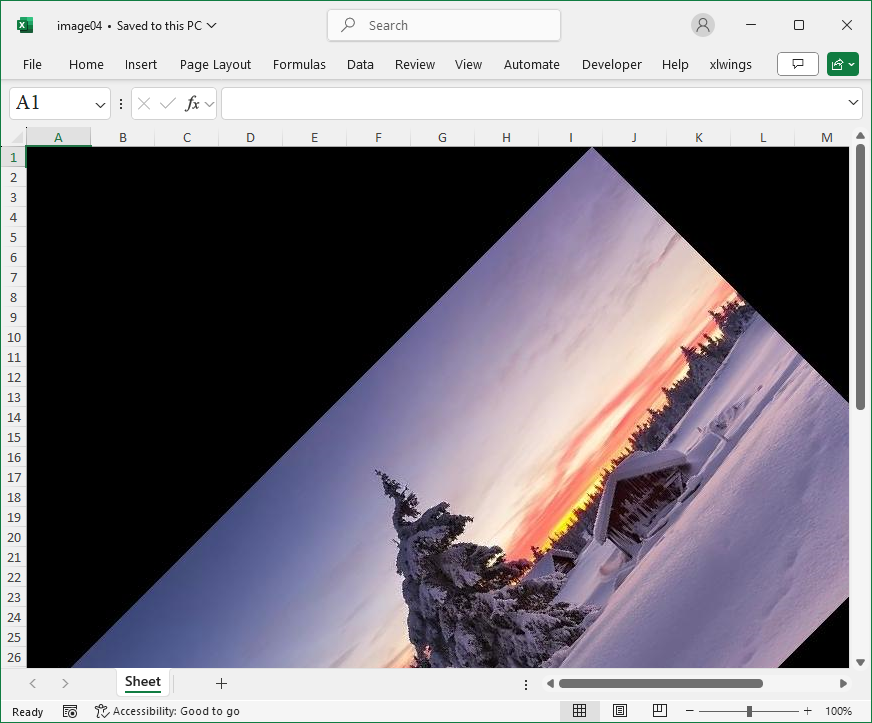
How To Rotate Images Using OpenPyXL?

Method

rotated_image=img.rotate(45, expand=True)

Sample Code

#Rotation Transformation

from openpyxl import Workbook
from openpyxl.drawing.image import Image as xlImage
from PIL import Image as pilImage

#Create a workbook
wb=Workbook()
#Get the active worksheet
ws=wb.active

# Open the original image file
img=pilImage.open('pic.jpg')

#Apply a rotation transformation to the image
rotated_image=img.rotate(45, expand=True)

# Save the transformed image as a temporary file
path='image2.jpg'
rotated_image.save(path)

# Add the image to the worksheet
img=xlImage(path)
ws.add_image(img, 'A1')

# Save the workbook
wb.save('image04.xlsx')

# Delete the temporary file
import os
os.remove(path)
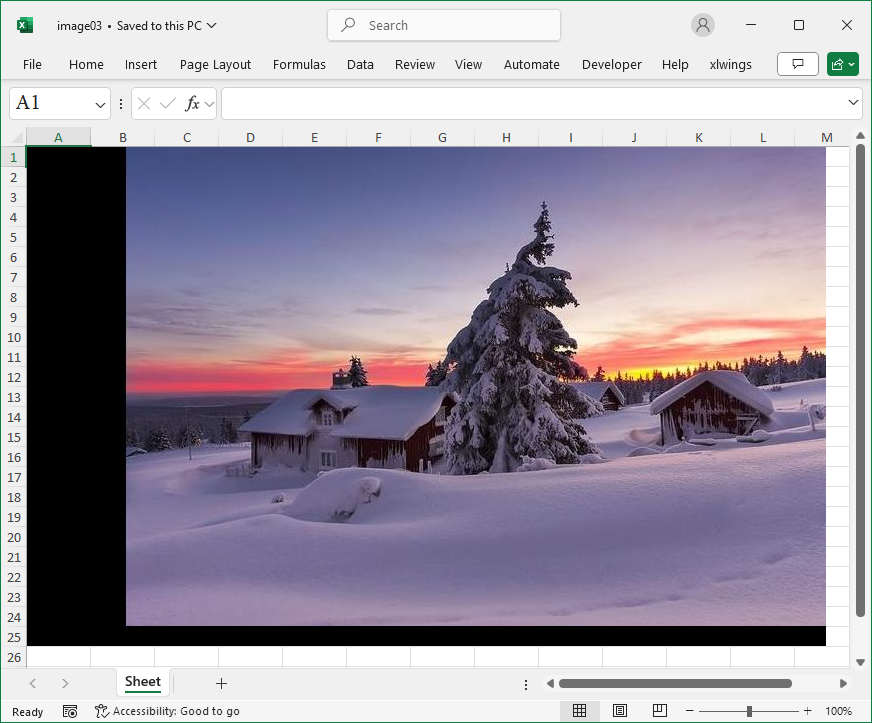
How To Translate Images Using OpenPyXL?

Method

img=img.rotate(0,translate=(100,-20))

Sample Code

#Translation Transformation

from openpyxl import Workbook
from openpyxl.drawing.image import Image as xlImage
from PIL import Image as pilImage

#Create a workbook
wb=Workbook()
#Get the active worksheet
ws=wb.active

# Open the original image file
img=pilImage.open('pic.jpg')

#Apply a translation transformation to the image
img=img.rotate(0,translate=(100,-20))

# Save the transformed image as a temporary file
path='image1.jpg'
img.save(path)

# Add the image to the worksheet
img=xlImage(path)
ws.add_image(img, 'A1')

# Save the workbook
wb.save('image03.xlsx')

# Delete the temporary file
import os
os.remove(path)
Translate Images Using OpenPyXL

How To Resize Cells and Images Using OpenPyXL?

Method

ws.column_dimensions[‘H’].width=18.0

ws.row_dimensions[2].height=48.0


img=Image(img_file)

img.width=46.0

img.height=46.0

ws.add_image(img,’H2′)  #Add the image to cell H2

Sample Code

#Resize Cells and Images

from openpyxl.drawing.image import Image
from openpyxl import Workbook

#Create a workbook
wb=Workbook()
#Get the active worksheet
ws=wb.active

#Change the width and height of specified columns and rows
ws.column_dimensions['H'].width=18.0
ws.row_dimensions[2].height=48.0

#The picture file
img_file='pic.jpg'

#Modify the image width and height
img=Image(img_file)
img.width=46.0
img.height=46.0
ws.add_image(img,'H2')  #Add the image to cell H2

wb.save('image02.xlsx')
wb.close()
Resize Cells and Images Using OpenPyXL

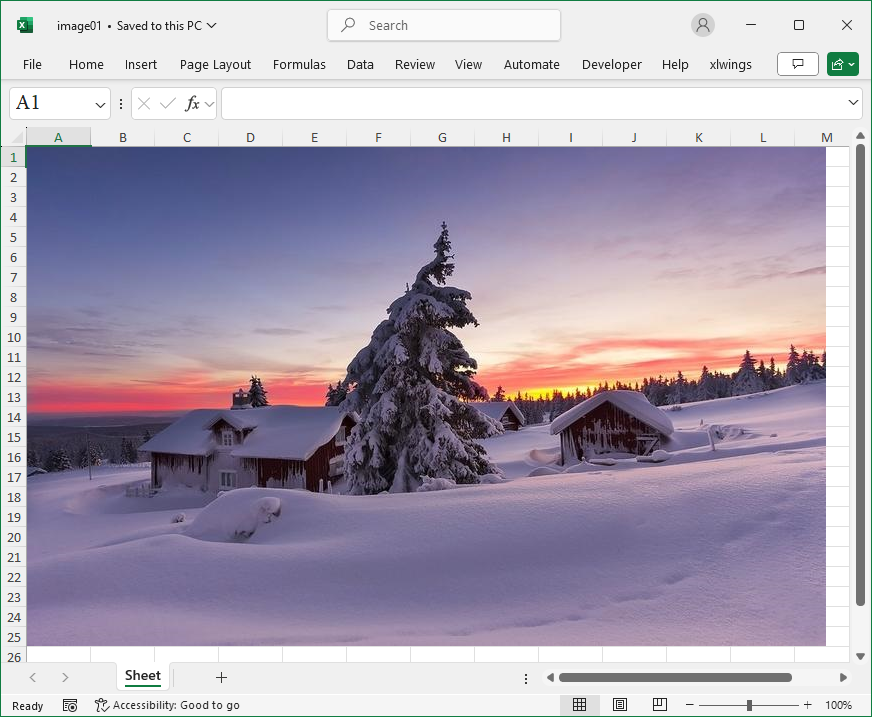
How To Insert a Picture Using OpenPyXL?

Method

from openpyxl.drawing.image import Image

img_file=’pic.jpg’

img=Image(img_file)

ws.add_image(img,’A1′)

Sample Code

#Add Images to the Worksheet

#Import relevant classes
from openpyxl.drawing.image import Image
from openpyxl import Workbook

#Create a workbook
wb=Workbook()
#Get the active worksheet
ws=wb.active

#Open an image file
img_file='pic.jpg'
#Create an Image object from the image
img=Image(img_file)
#Add the Image object to cell A1
ws.add_image(img,'A1')

wb.save('image01.xlsx')
wb.close()
Insert a Picture Using OpenPyXL