Method
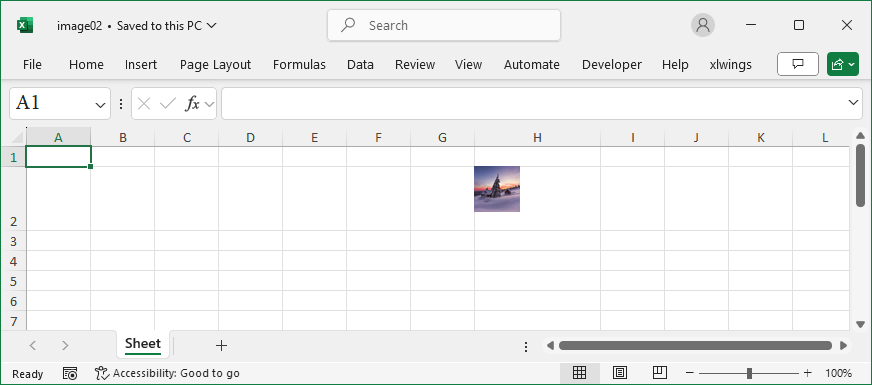
ws.column_dimensions[‘H’].width=18.0
ws.row_dimensions[2].height=48.0
img=Image(img_file)
img.width=46.0
img.height=46.0
ws.add_image(img,’H2′) #Add the image to cell H2
Sample Code
#Resize Cells and Images

from openpyxl.drawing.image import Image
from openpyxl import Workbook

#Create a workbook
wb=Workbook()
#Get the active worksheet
ws=wb.active

#Change the width and height of specified columns and rows
ws.column_dimensions['H'].width=18.0
ws.row_dimensions[2].height=48.0

#The picture file
img_file='pic.jpg'

#Modify the image width and height
img=Image(img_file)
img.width=46.0
img.height=46.0
ws.add_image(img,'H2')  #Add the image to cell H2

wb.save('image02.xlsx')
wb.close()