How To Set Cell Styles Using OpenPyX – Alignment

Method

Use the `Alignment` class constructor to create an `Alignment` object, which you can use to set the alignment of data in a cell.

from openpyxl.styles.alignment import Alignment

Alignment(horizontal=None, vertical=None, textRotation=0, wrapText=None, shrinkToFit=None, indent=0, relativeIndent=0, justifyLastLine=None, readingOrder=0, text_rotation=None, wrap_text=None, shrink_to_fit=None, mergeCell=None)

Where

  • horizontal—Horizontal alignment, which must be one of: “general”“center”“justify”“distributed”“fill”“right”“centerContinuous”“left”
  • vertical—Vertical alignment, which must be one of: “bottom”“distributed”“justify”“center”“top”
  • textRotation—The text rotation angle in degrees. Its value must be one of the following.

0, 1, 2, 3, 4, 5, 6, 7, 8, 9, 10, 11, 12, 13, 14, 15, 16, 17, 18, 19, 20, 21, 22, 23, 24, 25, 26, 27, 28, 29, 30, 31, 32, 33, 34, 35, 36, 37, 38, 39, 40, 41, 42, 43, 44, 45, 46, 47, 48, 49, 50, 51, 52, 53, 54, 55, 56, 57, 58, 59, 60, 61, 62, 63, 64, 65, 66, 67, 68, 69, 70, 71, 72, 73, 74, 75, 76, 77, 78, 79, 80, 81, 82, 83, 84, 85, 86, 87, 88, 89, 90, 91, 92, 93, 94, 95, 96, 97, 98, 99, 100, 101, 102, 103, 104, 105, 106, 107, 108, 109, 110, 111, 112, 113, 114, 115, 116, 117, 118, 119, 120, 121, 122, 123, 124, 125, 126, 127, 128, 129, 130, 131, 132, 133, 134, 135, 136, 137, 138, 139, 140, 141, 142, 143, 144, 145, 146, 147, 148, 149, 150, 151, 152, 153, 154, 155, 156, 157, 158, 159, 160, 161, 162, 163, 164, 165, 166, 167, 168, 169, 170, 171, 172, 173, 174, 175, 176, 177, 178, 179, 180

  • wrapText—Whether text wrapping is allowed (Boolean).
  • shrinkToFit—Whether to shrink the text to fit the cell.
  • indent—The indent level, a floating-point number.
  • relativeIndent—The relative indent level, a floating-point number.
  • justifyLastLine—Whether to justify the last line (Boolean).
  • readingOrder—The reading order, a floating-point number.
  • text_rotation—An alias for **textRotation**, used when the property name is invalid, conflicts with a Python keyword, or is more descriptive.
  • wrap_text—An alias for wrapText
  • shrink_to_fit—An alias for shrinkToFit
  • mergeCell—Merges the cell.

Sample Code

#Cell Style: Set the Alignment

#Import load_workbook function
from openpyxl import Workbook

#Create a new workbook
wb=Workbook()
#Get the active worksheet
ws=wb.active

#Import the Alignment class
from openpyxl.styles import Alignment

#Set the alignment
align1=Alignment(horizontal='center', vertical='top')
align2=Alignment(horizontal='right', vertical='bottom', \
                 text_rotation=30, wrap_text=True, \
                 shrink_to_fit=True, indent=0)
align3=Alignment(horizontal='center', vertical='center', \
                 wrap_text=True, indent=3)

#Apply the first alignment style to cell C2
ws['C2'].alignment=align1
ws['C2'].value='Python123'

#Apply the second alignment style to cell C4
ws['C4'].alignment=align2
ws['C4'].value='Python123'

#Apply the third alignment style to cell C6
ws['C6'].alignment=align3
ws['C6'].value='Python123'

wb.save('test.xlsx')
wb.close()
Set Cell Styles Using OpenPyX - Alignment

How To Set Cell Styles Using OpenPyX – Number Format

Method

Use the `numbers` module and the `number_format` property of the cell object to set number formats.

>>> from openpyxl.styles import numbers

There are two ways to set the number format:

1. Using the built-in constants of OpenPyXl:

>> ws[“D2”].number_format=numbers.FORMAT_GENERAL

2. Using a string representation of the number format:

>> ws[“D6″].number_format=”yy-mm-dd”

>> ws[“D8″].number_format=”d-mmm-yy”

To display numbers in scientific notation:

>> ws[“D4”].number_format = ‘0.00E+00’


The available format constants and strings in OpenPyXl are as follows:

  • FORMAT_GENERAL=”General”
  • FORMAT_TEXT=”@”
  • FORMAT_NUMBER=”0″
  • FORMAT_NUMBER_00=”0.00″
  • FORMAT_NUMBER_COMMA_SEPARATED1=”#,##0.00″
  • FORMAT_NUMBER_COMMA_SEPARATED2=”#,##0.00_-“
  • FORMAT_PERCENTAGE=”0%”
  • FORMAT_PERCENTAGE_00=”0.00%”
  • FORMAT_DATE_YYYYMMDD2=”yyyy-mm-dd”
  • FORMAT_DATE_YYMMDD=”yy-mm-dd”
  • FORMAT_DATE_DDMMYY=”dd/mm/yy”
  • FORMAT_DATE_DMYSLASH=”d/m/y”
  • ……

Sample Code

#Cell Style: Setting Number Formats

#Import load_workbook function
from openpyxl import Workbook

#Create a new workbook
wb=Workbook()
#Get the active worksheet
ws=wb.active

#Import numbers class
from openpyxl.styles import numbers
import datetime

#Set the number format
ws['D2']='Test123'
ws['D6']=datetime.datetime.today()
ws['D8']=datetime.datetime.today()
ws['D4']=123.456789
ws['D2'].number_format=numbers.FORMAT_GENERAL
ws['D6'].number_format='yy-mm-dd'
ws['D8'].number_format='d-mmm-yy'
ws['D4'].number_format='0.00E+00'

wb.save('test.xlsx')
wb.close()
Set Cell Styles Using OpenPyX - Number Format

How To Set Cell Styles Using OpenPyX – Border

Method

Use the `Border` class to create a border object and apply it to a cell.

from openpyxl.styles.borders import Border,Side

Border(left=<openpyxl.styles.borders.Side object> Parameters: style=None, color=None, right=<openpyxl.styles.borders.Side object> Parameters: style=None, color=None, top=<openpyxl.styles.borders.Side object> Parameters: style=None, color=None, bottom= <openpyxl.styles.borders.Side object>

Parameters: style=None, color=None, diagonal=<openpyxl.styles.borders. Side object> Parameters: style=None, color=None, diagonal_direction=None, vertical=None, horizontal=None, diagonalUp=False, diagonalDown=False, outline= True, start=None, end=None)

Where

  • leftrighttopbottomdiagonalDefine the left, right, top, bottom, and diagonal borders, as **Side** objects.
  • diagonalDowndiagonalUpBoolean values, define the direction of the diagonal line. It can be drawn from the top-left to bottom-right, or from the bottom-left to top-right.

A Side object represents a border, which is a line-shaped graphical element. Its main properties include the line style and color. The constructor for this Side object is as follows:

Side(style=None, color=None, border_style=None)

Where

  • styleThe border style, which must be one of: “hair”“dashed”“mediumDashDot”“mediumDashDotDot”“slantDashDot”“double”“thick”“mediumDashed”“thin”“medium”“dashDotDot”“dashDot”“dotted”
  • colorThe color of the border.
  • border_styleAn alias for style.

Sample Code

#Cell Style: Setting Borders

#Import load_workbook function
from openpyxl import Workbook

#Create a new workbook
wb=Workbook()
#Get the active worksheet
ws=wb.active

#Import Border class and Side class
from openpyxl.styles import Border, Side

#Set cell borders
#Use the Border function to create individual borders
ws.cell(row=4, column=4).border = Border(left=Side(border_style='thin', \
            color='FF0000'), right=Side(border_style='thin', \
            color='FF0000'), top=Side(border_style='double', \
            color='FF0000'), bottom=Side(border_style='double', \
            color='FF0000'))

wb.save('test.xlsx')
wb.close()
Set Cell Styles Using OpenPyX - Border

How To Set Cell Styles Using OpenPyX – Background Pattern Fill

Method

You can set cell background fill using either gradient fill or pattern fill, using the `GradientFill` and `PatternFill` classes respectively.

  • Pattern Fill

Use the `PatternFill` class to create a pattern fill object.

from openpyxl.styles.fills import PatternFill

PatternFill(patternType=None,fgColor=<openpyxl.styles.colors.Color object>

Parameters: rgb=’00000000′, indexed=None, auto=None, theme=None, tint=0.0, type=’rgb’, bgColor=<openpyxl. styles.colors.Color object>

Parameters: rgb=’00000000′, indexed=None, auto=None, theme=None, tint=0.0, type=’rgb’, fill_type=None, start_color=None, end_color= None)

Where

patternTypefill_typeThe pattern fill type, its value must be one of the following: “darkDown”“gray0625”“mediumGray”“darkHorizontal”“lightVertical”“darkGrid”“lightGray”“darkTrellis”“darkVertical”“lightGrid”“solid”“lightDown”“lightUp”“darkUp”“darkGray”“lightTrellis”“lightHorizontal”“gray125”None

fgColorstart_colorForeground color, the value of fgColor must be a Color object.

bgColorend_colorBackground color, the value of bgColor must be a Color object.


When **fill_type** is set to None, no fill will be applied.

When **fill_type** is set to ‘Solid’, it will be a solid color fill.

Sample Code

#Cell Style: Pattern Fill

#Import load_workbook function
from openpyxl import Workbook

#Create a new workbook
wb=Workbook()
#Get the active worksheet
ws=wb.active

#Import PatternFill class
from openpyxl.styles import PatternFill
from openpyxl.styles.colors import Color

#Pattern fill
ws['B2'].fill=PatternFill(fill_type=None, \
            start_color='FFFF00', end_color='000000')
ws['C2'].fill=PatternFill(fill_type='solid', \
            start_color='00FF00')
ws['E2'].fill=PatternFill(fill_type='lightGrid', \
            start_color='FFFF00', end_color='000000')
fill=PatternFill(fill_type='lightTrellis', \
            fgColor=Color(rgb='00FF00'), bgColor=Color(rgb='0000FF'))
ws.column_dimensions['B'].fill=fill
fill=PatternFill(fill_type='lightGray', \
            fgColor=Color(rgb='FFFF00'), bgColor=Color(rgb='0000FF'))
ws.row_dimensions[4].fill = fill

wb.save('test.xlsx')
wb.close()
Set Cell Styles Using OpenPyX - Background Pattern Fill

How To Set Cell Styles Using OpenPyX – Background Gradient Fill

Method

You can set cell background fill using either gradient fill or pattern fill, using the `GradientFill` and `PatternFill` classes respectively.

  • Gradient Fill

Use the `GradientFill` class to create a gradient fill object and apply it to the cell.

from openpyxl.styles.fills import GradientFill,Stop

GradientFill(type=’linear’, degree=0, left=0, right= 0, top=0,bottom=0, stop=())

type:  ‘linear’ for linear gradient, ‘path’ for path gradient.

degree: From 0 to 360, with 0 degrees being horizontal to the right, rotating clockwise.

Stop(‘FF0000’,0.5)

stop1=(‘FF0000′,’00FF00′,’0000FF’)    #Equal intervals

stop2=(Stop(‘FF0000’,0.0),Stop(‘FF0000’,0.3),Stop(‘FF0000’,1.0))    #Unequal intervals

cl_1.fill=GradientFill(type=’linear’, stop=stop1)

cl_2.fill=GradientFill(type=’linear’, stop=stop2)

cl_3.fill=GradientFill(type=’linear’, degree=45,stop=stop1)

cl_4.fill=GradientFill(type=’path’, left=0.5, right= 0.5, top=0.5,bottom=0.5, stop=stop1)

Sample Code

#Cell Style: Gradient Fill

#Import load_workbook function
from openpyxl import Workbook

#Create a new workbook
wb=Workbook()
#Get the active worksheet
ws=wb.active

#Import GradientFill class
from openpyxl.styles import GradientFill
#Apply gradient color fill to cells
#Linear gradient: gradient from one side of the cell to the other
#Path gradient: gradient from the four edges of the cell inward
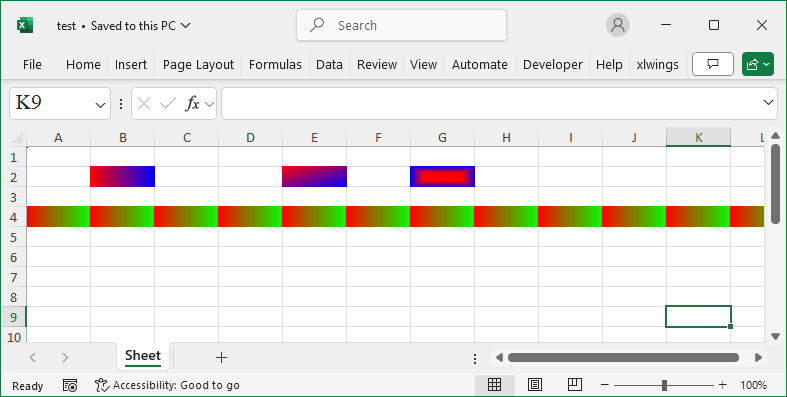
ws['B2'].fill=GradientFill(type='linear', \
        degree=0, left=0, right=0, top=0, bottom=0, \
        stop=['FF0000','0000FF'])
ws['E2'].fill=GradientFill(type='linear', \
        degree=45, left=0, right=0, top=0, bottom=0, \
        stop=['FF0000','0000FF'])
ws['G2'].fill = GradientFill(type='path', \
        left=0.2, right=0.8, top=0.3, bottom=0.7, \
        stop=['FF0000','0000FF'])
ws.row_dimensions[4].fill=GradientFill(type='linear', \
        degree=0, left=0, right=0, top=0, bottom=0, \
        stop=['FF0000','00FF00'])

wb.save('test.xlsx')
wb.close()
Set Cell Styles Using OpenPyX - Background Gradient Fill

How To Set Cell Styles Using OpenPyX – Color

Method

  • RGB Coloring

>>> font = Font(color=’00FF0000′)

>> font = Font(color=’FF0000′)

>>> from openpyxl.styles.colors import Color

>>> c = Color(rgb=’00FF00′)     #RGB Color

>>> font = Font(color=c)

  • Indexed Coloring

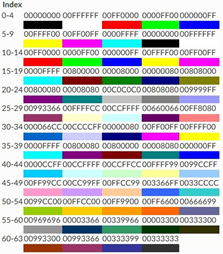
>>> c = Color(indexed=32)     #Indexed Color

>>> font = Font(color=c)

  • Theme Color

Set theme color using the `theme` parameter.

>>> c = Color(theme=6, tint=0.5)     #Theme color

>>> font = Font(color=c)

Sample Code

#Cell Style: Setting Colors

#Import load_workbook function
from openpyxl import Workbook

#Create a new workbook
wb=Workbook()
#Get the active worksheet
ws=wb.active

#Import the Font class
from openpyxl.styles import Font
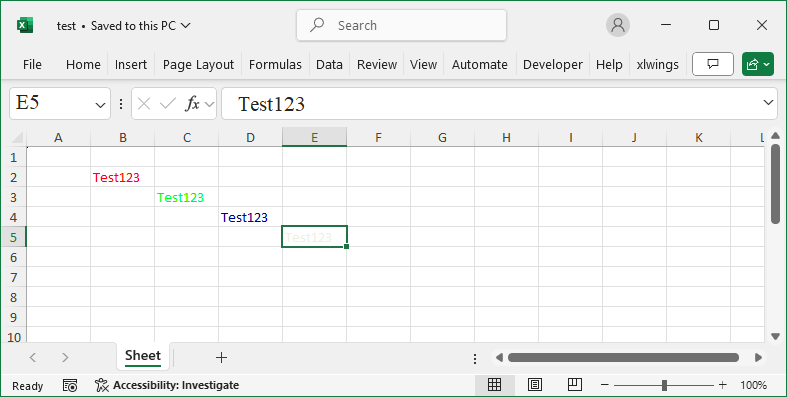
font=Font(color="00FF0000")
#font=Font(color="FF0000")

#Set font for a cell
ws.cell(row=2,column=2).font=font
ws['B2']='Test123'

from openpyxl.styles.colors import Color
#RGB color
c=Color(rgb="00FF00")
font=Font(color=c)

#Set font for a cell
ws.cell(row=3,column=3).font=font
ws['C3']='Test123'

#Indexed coloring
c=Color(indexed=32)
font=Font(color=c)

#Set font for a cell
ws.cell(row=4,column=4).font=font
ws['D4']='Test123'

#Theme colors
c=Color(theme=6,tint=0.8)
font=Font(color=c)

#Set font for a cell
ws.cell(row=5,column=5).font=font
ws['E5']='Test123'

wb.save('test.xlsx')
wb.close()
Set Cell Styles Using OpenPyX - Color

Indexed Color Table

How To Set Cell Styles Using OpenPyX – Font

Method

Create a `Font` object to define the font’s name, size, boldness, italics, etc. The main parameters and their descriptions are as follows:

  • nameFont name.
  • sizeFont size.
  • colorFont color.
  • boldWhether the font is bold.
  • italicWhether the font is italic.
  • underlineUnderline setting, can be “none”, “single”, or “double”.
  • strikeWhether the font has a strike-through.
  • strikethroughAlternate for strike-through.
  • vertalignSuperscript, subscript setting, can be “superscript”, “subscript”, or “baseline”.

Sample Code

#Cell Style: Setting Fonts

#Import load_workbook function
from openpyxl import Workbook

#Create a new workbook
wb=Workbook()
#Get the active worksheet
ws=wb.active

#Import the Font class
from openpyxl.styles import Font

#Create a font
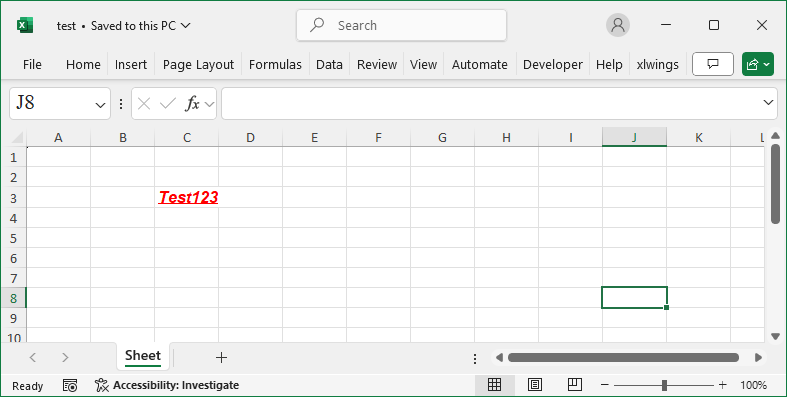
font=Font(name='Arial', size=12, bold=True, italic=True, \
          underline='single', strike=False, color='FF0000')

#Set the font of a cell
ws.cell(row=3, column=3).font=font
ws['C3']='Test123'

wb.save('test.xlsx')
wb.close()
Set Cell Styles Using OpenPyX - Font

How To Set Cell Styles Using OpenPyX – Overview

Method

Import related classes to set the cell style. OpenPyXl  has six related classes:

  • NumberFormat
  • Font
  • Alignment
  • PatternFill
  • Border
  • Protection

Import them before using them:

from openpyxl.styles import numbers,Font, Alignment

from openpyxl.styles import PatternFill, Border, Side, Protection

Sample Code

#Working with Cell Styles

#Import load_workbook function
from openpyxl import Workbook

#Create a new workbook
wb=Workbook()
#Get the active worksheet
ws=wb.active

#Import cell style-related classes
from openpyxl.styles import numbers,Font,Alignment
from openpyxl.styles import PatternFill,Border,Side,Protection
from openpyxl.styles import Font

#Create fonts
font=Font(bold=True)

#Get a cell
cl=ws['C3']

#Set the font of a cell
cl.font=font

#Set the font of a cell range
for row in ws['A1:C3']:
    for cell in row:
        cell.font = font

#Set the font of a row
row=ws.row_dimensions[1]
row.font=font

#Set the font of a column
column=ws.column_dimensions['A']
column.font=font

wb.save('test.xlsx')
wb.close()
Set Cell Styles Using OpenPyX

How To Used Cell Range of a Worksheet Using OpenPyXL?

Method

When the first N rows or columns of data are empty, there may be issues when iterating over all rows using the `rows` property of the worksheet object or over all columns using the `columns` property.

Use the following properties of the worksheet object to construct a `CellRange` object:

>>> from openpyxl.worksheet.cell_range import CellRange

>>> cr=CellRange(min_col=ws.min_column,max_col=ws.max_column,   min_row=ws.min_row,max_row=ws.max_row)

>>> cr.coord

Sample Code

#Used Range of Cells in a Worksheet

#Import load_workbook function
from openpyxl import Workbook

#Create a new workbook
wb=Workbook()
#Get the active worksheet
ws=wb.active

#Import the CellRange function
from openpyxl.worksheet.cell_range import CellRange

#Use the CellRange function to create a cell range object
cr=CellRange(min_col=ws.min_column,max_col=ws.max_column, \
             min_row=ws.min_row,max_row=ws.max_row)

#Output the coordinates of the cell range
print(cr.coord)

wb.save('test.xlsx')
wb.close()
How To Reference a Cell Range Using OpenPyXL? (2)

Method

Using the `CellRange` class.

from openpyxl.worksheet.cell_range import CellRange

Attributes of CellRange Object

  • bottom,top,left,right  – Coordinates of the four sides of the range.
  • cells, cols, rows – Cell coordinates.
  • bounds – Vertices, similar to `(8, 3, 10, 5)`.
  • min_row, min_col, max_row, max_col – Row or column numbers around the range.
  • size – Size

Sample Code

#Referencing Cell Ranges

#Import load_workbook function
from openpyxl import Workbook

#Create a new workbook
wb=Workbook()
#Get the active worksheet
ws=wb.active

#Use the `CellRange` method to create a cell range object
from openpyxl.worksheet import cell_range as cr
cr0=cr.CellRange(min_row=2,max_row=5,min_col=3,max_col=6)

#Coordinates of cells in the bottom row of the range
print(cr0.bottom)

#Coordinates of cells in the top row of the range
print(cr0.top)

#Coordinates of cells in the leftmost column of the range
print(cr0.left)

#Coordinates of cells in the rightmost column of the range
print(cr0.right)

#Minimum row number in the range
print(cr0.min_row)

#Minimum column number in the range
print(cr0.min_col)

#Maximum row number in the range
print(cr0.max_row)

#Maximum column number in the range
print(cr0.max_col)

#Size of the range
print(cr0.size)

#Coordinates of the top-left and
#bottom-right cells of the range
print(cr0.bounds)

#Coordinates of the top-left and
#bottom-right cells of the range
print(cr0.coord)

#Coordinates of each row's cells in the range
for cell in cr0.rows:
    print(cell)

#Coordinates of each column's cells in the range
for cell in cr0.cols:
    print(cell)

#Coordinates of each individual cell in the range
for cell in cr0.cells:
    print(cell)

wb.save('test.xlsx')
wb.close()