Method
You can set cell background fill using either gradient fill or pattern fill, using the `GradientFill` and `PatternFill` classes respectively.
- Gradient Fill
Use the `GradientFill` class to create a gradient fill object and apply it to the cell.
from openpyxl.styles.fills import GradientFill,Stop
GradientFill(type=’linear’, degree=0, left=0, right= 0, top=0,bottom=0, stop=())
type: ‘linear’ for linear gradient, ‘path’ for path gradient.
degree: From 0 to 360, with 0 degrees being horizontal to the right, rotating clockwise.
Stop(‘FF0000’,0.5)
stop1=(‘FF0000′,’00FF00′,’0000FF’) #Equal intervals
stop2=(Stop(‘FF0000’,0.0),Stop(‘FF0000’,0.3),Stop(‘FF0000’,1.0)) #Unequal intervals
cl_1.fill=GradientFill(type=’linear’, stop=stop1)
cl_2.fill=GradientFill(type=’linear’, stop=stop2)
cl_3.fill=GradientFill(type=’linear’, degree=45,stop=stop1)
cl_4.fill=GradientFill(type=’path’, left=0.5, right= 0.5, top=0.5,bottom=0.5, stop=stop1)
Sample Code
#Cell Style: Gradient Fill

#Import load_workbook function
from openpyxl import Workbook

#Create a new workbook
wb=Workbook()
#Get the active worksheet
ws=wb.active

#Import GradientFill class
from openpyxl.styles import GradientFill
#Apply gradient color fill to cells
#Linear gradient: gradient from one side of the cell to the other
#Path gradient: gradient from the four edges of the cell inward
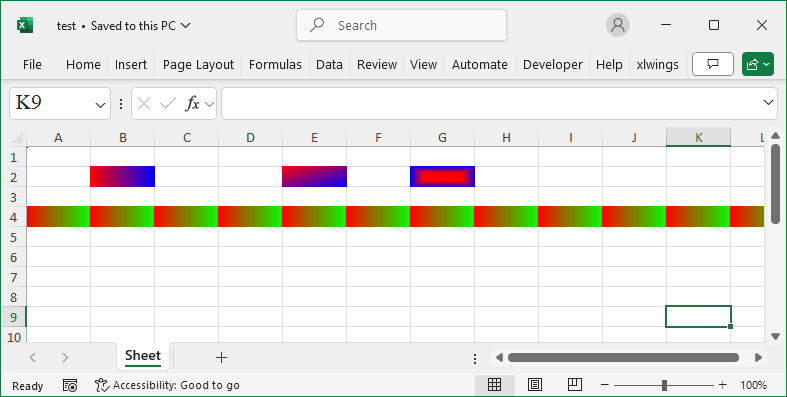
ws['B2'].fill=GradientFill(type='linear', \
        degree=0, left=0, right=0, top=0, bottom=0, \
        stop=['FF0000','0000FF'])
ws['E2'].fill=GradientFill(type='linear', \
        degree=45, left=0, right=0, top=0, bottom=0, \
        stop=['FF0000','0000FF'])
ws['G2'].fill = GradientFill(type='path', \
        left=0.2, right=0.8, top=0.3, bottom=0.7, \
        stop=['FF0000','0000FF'])
ws.row_dimensions[4].fill=GradientFill(type='linear', \
        degree=0, left=0, right=0, top=0, bottom=0, \
        stop=['FF0000','00FF00'])

wb.save('test.xlsx')
wb.close()