How To Open .xls Files Using OpenPyXL?

Method

  • Open with Excel and save as .xlsx file.
  • Import with pandas and write to a .xlsx file.
  • Open with win32com or xlwings and save as .xlsx file.

Sample Code

#Use pandas

#
from openpyxl import load_workbook
workbook = load_workbook(filename="d:/wb2.xlsx")
sheet = workbook.active
sheet.freeze_panes = 'B2'
workbook.save('d:/wb2.xlsx')

How To Open an Existing Workbook File Using OpenPyXL?

Method

The `load_workbook` function can be used to open an existing workbook file. The function’s syntax is:

wb=openpyxl.load_workbook(filename,read_only,keep_vba,guess_types, data_only,keep_links)

Where:

`filename` — a string representing the file path and name of the file to be opened.

`read_only` — a boolean indicating read-only mode. Setting it to read-only helps save memory for large files.

`keep_vba` — a boolean for files with VBA macros. If True, it retains the VBA code.

`guess_types` — a boolean that determines whether to guess data types when reading data from the worksheet.

`data_only` — a boolean specifying whether to display the most recent calculation results in cells containing formulas.

`keep_links` — a boolean indicating whether to preserve external links.

This function returns a workbook object.

Sample Code

#Opening an Existing Workbook

#Import the load_workbook function
from openpyxl import load_workbook

#Load an existing workbook file
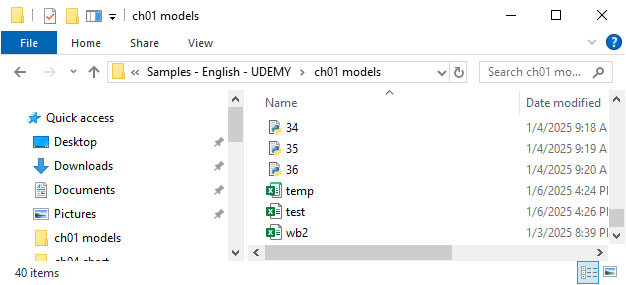
wb=load_workbook('test.xlsx')

How To Create, Save and Close a Workbook Using OpenPyXL?

Method

Creating a Workbook Object:

import openpyxl as pyxl
wb = pyxl.Workbook()
# Or
from openpyxl import Workbook
wb = Workbook()

Saving a Workbook:

wb.save(‘test.xlsx’)

Saving As:

wb.save(‘test2.xlsx’)

Saving as a Template:

wb.template = True
wb.save(‘temp.xltx’)

Closing a Workbook:

wb.close()

Sample Code

#Creating, Saving, and Closing a Workbook

#Import the openpyxl package with alias pyxl
import openpyxl as pyxl

#Create a new workbook
wb=pyxl.Workbook()

#Or import the Workbook function
#from openpyxl import Workbook
#Create a new workbook
#wb=Workbook()

#Save the workbook
wb.save('test.xlsx')

#Save as a template
wb.template = True
wb.save('temp.xltx')

#Close the workbook
wb.close()

General Process of Using OpenPyXL Package

Three steps:

  • Import the module and create or open a workbook
  • Data analysis and visualization
  • Save and close the workbook

Sample code

import openpyxl as pyxl
wb = pyxl.Workbook()
# Or
from openpyxl import Workbook
wb = Workbook()

ws = wb.create_sheet()
ws["A1"] = 0
ws.append([1, 2, 3])

wb.save('test.xlsx')
wb.close()

OpenPyXL Package and Installation

Advantages and Disadvantages of OpenPyXL Package

Advantages

  • Does not rely on Excel, suitable for software development.
  • Lightweight and flexible, supports object models, powerful functionality, OpenPyXL + pandas.
  • Cross-platform.

Disadvantages

  • Functionality is not as comprehensive as VBA.
  • The entire operation process is invisible; results are only visible after saving and reopening.
  • Cannot directly open .xls files.

Installing OpenPyXL Package

Online installation: pip install openpyxl

Offline installation: https://pypi.org/project/openpyxl/#files